
Write down or take a photo of your account information:
Triton ID: a.name1234
Triton Email Address: a.name1234@student.edmonds.edu
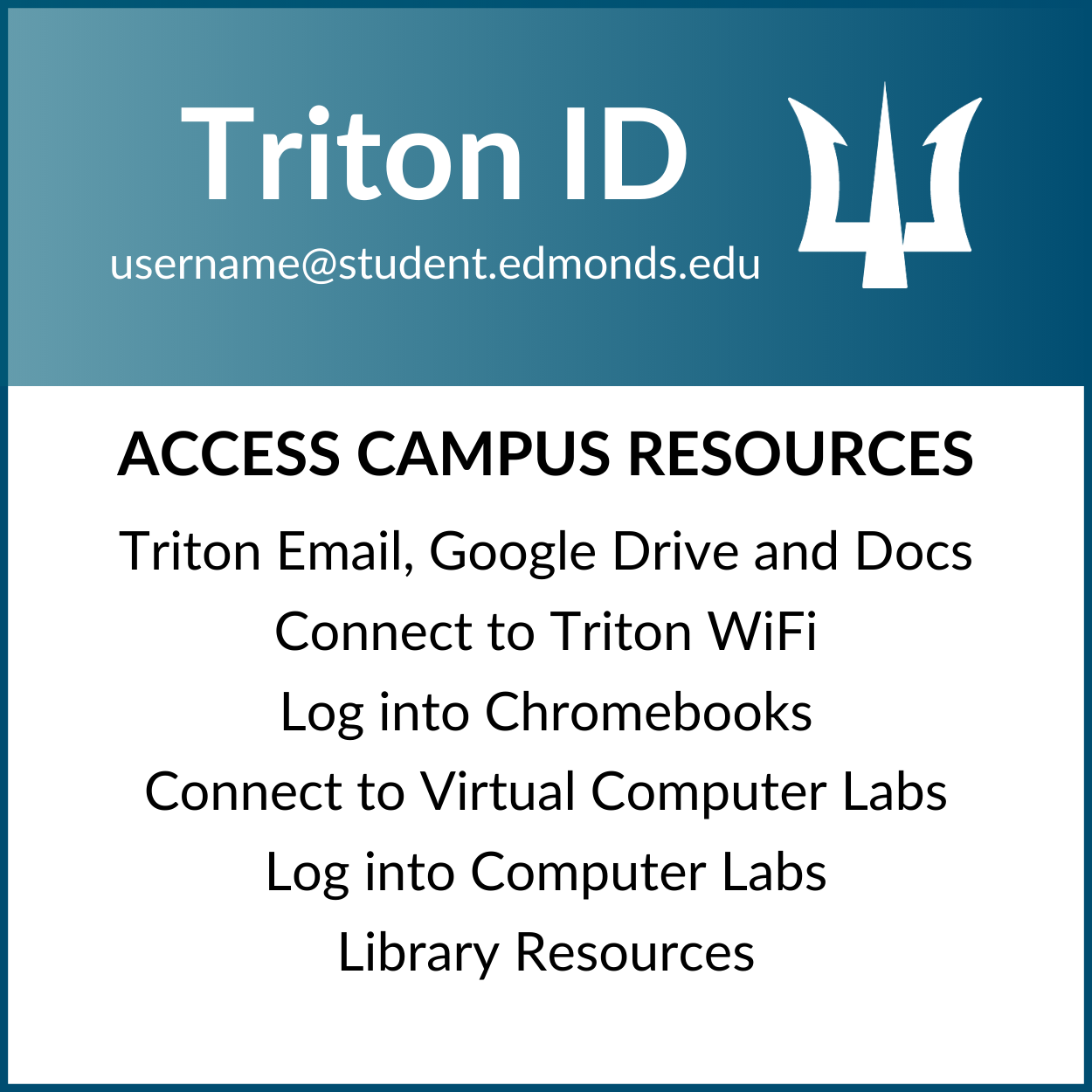
Your Triton ID gives you access to Campus Technology Resources including:
Use your Triton Email to access:
Before you access your account, you must create a new password to log in.
Your Temporary Password: The first two letters of your first name (first letter is capitalized) followed by the last 6 digits of your ctcLink ID.
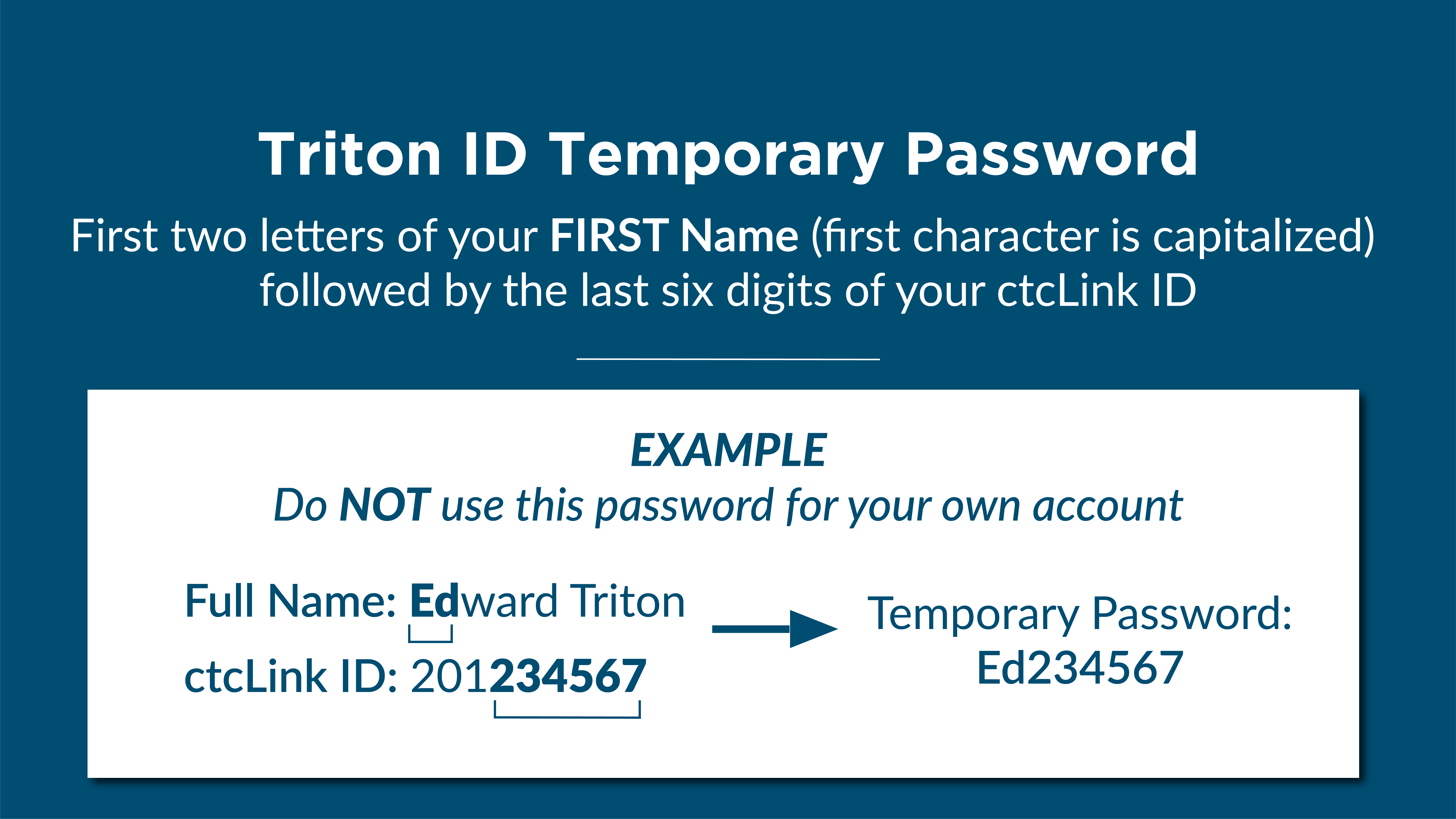
Visit the Triton Access page to create your own password and set up your account recovery options. Use your Triton ID (do not add @student.edmonds.edu) and temporary password to get started.
Please note that your new password will expire after 120 days.
Once you have created a new password, you can sign in to your Triton Email Account (G Suite) and access Campus Technology Resources.
If your password has expired or you forgot it, follow these instructions on
How to Reset Triton ID Password.
If you need additional assistance, or find that your password does not work, visit itsupport.edmonds.edu to submit a ticket.